Installing MongoDB on Mac (Catalina and non-Catalina)
I had to reconfigure my Macbook after sending it for repairs. During the reconfiguration period, I noticed the instructions I linked to in “Setting up a local MongoDB connection” were outdated.
Here’s an updated version on how to install MongoDB on a Mac.
There are a few steps:
First, you install Homebrew. If you’re curious about what Homebrew is, read this article.
# Installs Homebrew/usr/bin/ruby -e "$(curl -fsSL https://raw.githubusercontent.com/Homebrew/install/master/install)"Second, find the MongoDB tap.
brew tap mongodb/brewThird, install MongoDB.
brew install mongodb-communityMongoDB is now installed on your computer.
Preparations (Before MacOS Catalina)
Before you can use MongoDB, you need to create a /data/db folder on your computer to use MongoDB. You can create this folder with the following command:
sudo mkdir -p /data/dbYou also need to give permissions to use it:
sudo chown -R `id -un` /data/dbNow you can follow the rest of the article to set up your MongoDB connection.
Preparations (MacOS Catalina onwards)
Apple created a new Volume in Catalina for security purposes. If you’re on Catalina, you need to create the /data/db folder in System/Volumes/Data.
Use this command:
sudo mkdir -p /System/Volumes/Data/data/dbThen, use this command to give permissions:
sudo chown -R `id -un` /System/Volumes/Data/data/dbUsing MongoDB
In the past, I can run the mongod command to start MongoDB. This no longer works out for the box from MongoDB v4.2.3 onwards.
The best way to start MongoDB now is via brew services.
Starting MongoDB
Use this command:
brew services run mongodb-communityMongoDB will start as a background service. Here’s what you’ll see:
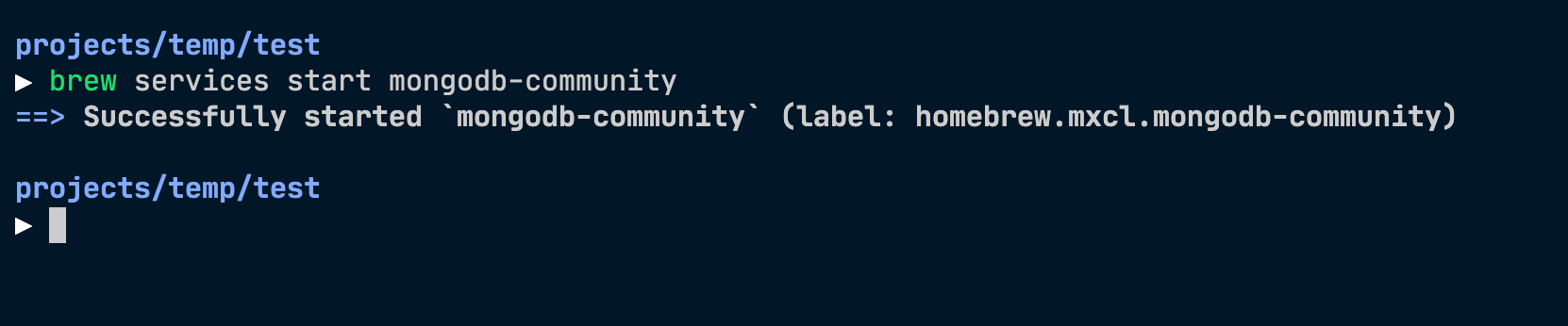
You can use start instead of run. start will start MongoDB automatically
when you login into your Macbook. I prefer run since I don’t want MongoDB to
be running all the time.
Checking if MongoDB is running
Use this command:
brew services listHomebrew will list all running services. If MongoDB is running, mongodb-community will have a status set to started.

The Mongo Shell
If MongoDB is running, you should be able to access the Mongo shell with the mongo command.
mongo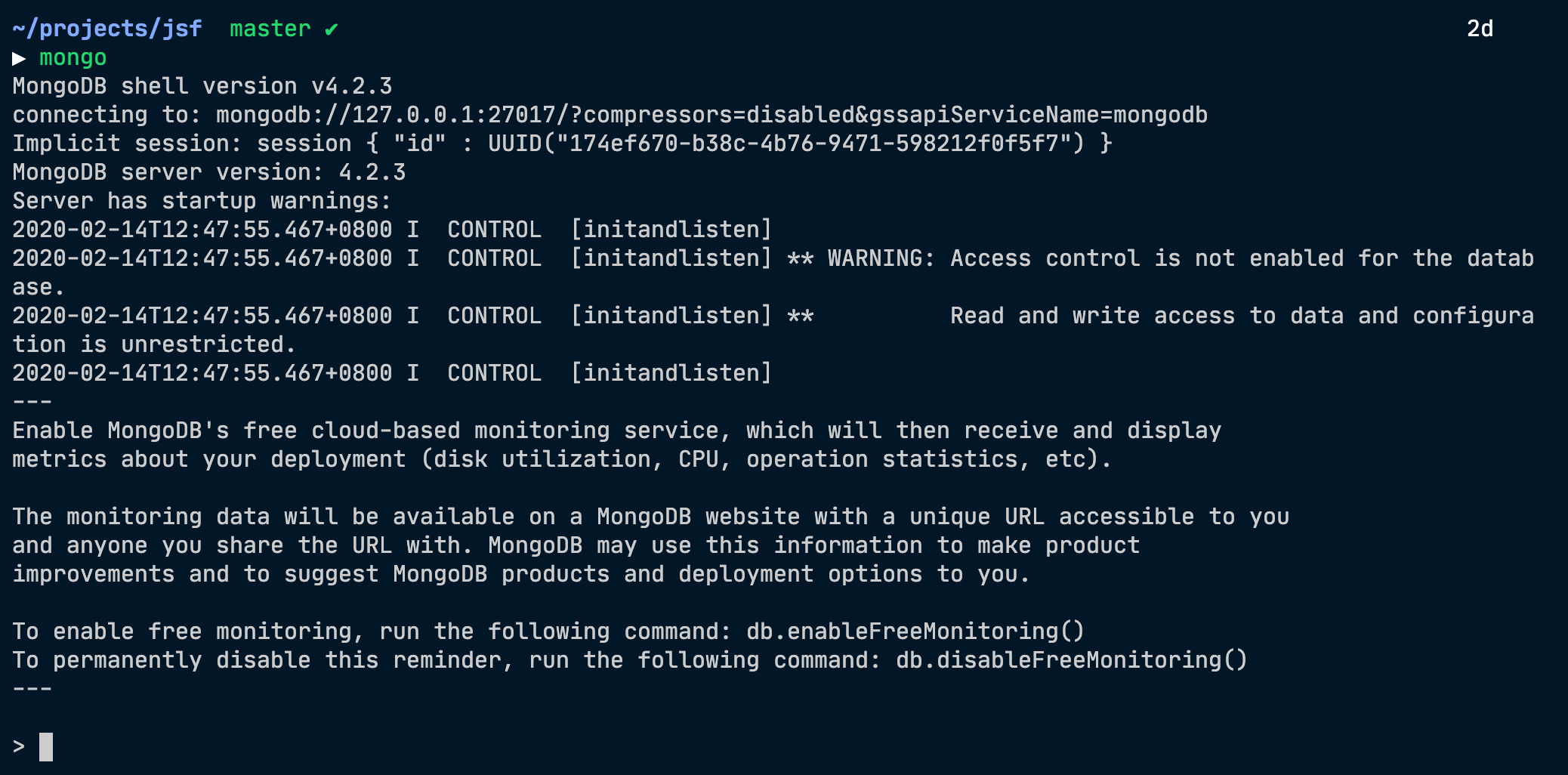
Stopping MongoDB
Use this command:
brew services stop mongodb-communityHomebrew will stop MongoDB and let you know.

Aliases to make these easier
It’s a chore typing brew services run mongodb-community every time I want to start MongoDB.
I created some aliases to make things easier for me. Here are my aliases:
alias mongod='brew services run mongodb-community'alias mongod-status='brew services list'alias mongod-stop='brew services stop mongodb-community'What’s next?
If you haven’t already, you should learn how to set up a local MongoDB connection.